TV Cast - Roku Remote & All
- 3.8
- Rating
- 100.00K
- Installs
- Free
- Price

 Analysis by App-foxy
I approached TV Cast - Roku Remote & All as a practical tools app rather than another entertainment service. Its central promise is simple: use a phone to send photos and videos to a compatible television, while also turning that phone into a universal remote. That combination sounds modest, but it changes how useful the app feels from one household to another. If your phone already holds the pictures or clips you want to show, the distance between choosing something and seeing it on a larger screen can become much shorter.
In my experience, the strongest reason to try it is convenience. I do not have to search for a separate casting method and then reach for a physical remote every time I want to adjust the viewing experience. The app brings those two jobs together. It is free to install, carries an Everyone age rating, and comes from FlyMobile. The current release is version 1.30.9, with support beginning at Android 7.0, so it is aimed at a broad range of Android phones rather than only recent hardware.
There is also a realistic limit to what this kind of tool can solve. A phone-based remote cannot make an incompatible television compatible, and casting personal media is not the same as replacing every streaming application built into a TV. I would recommend it most strongly to people who regularly move personal content from a phone to a television. Someone who only watches through dedicated TV apps may find a standard remote or the manufacturer’s own application more direct.
You May Also Like

 Blood Strike: 2.5 Anniversary
Blood Strike’s Loadouts Turn Every Drop Into a Tactical Gamble
A close look at Blood Strike’s custom loadouts: how fast access to signature weapons reshapes its battle royale rhythm, rewards preparation, and narrows the gap between fights.

 Pandora - Music & Podcasts
Pandora’s Music Is Easy to Start, but Harder to Recover
Pandora’s strength is its low-effort path from a seed to a station. Its weak spot is how much confidence it asks you to place in connection, setup, and quiet recovery.

 8 Ball Pool
 Is Built on Rivalries, Rematches, and Routine
A close look at the rivalries, rematches, shared routines, and unanswered safety questions that turn a quick pool match into a persistent mobile community.

 Samsung Music
’s Quiet Strength Is Playing What You Already Own
Its reach comes less from spectacle than from dependable access to a personal library. That simplicity is both the app’s strongest retention engine and its ceiling.

 AccuWeather: Weather Radar
AccuWeather Review: A Quick, Clear Forecast for Everyday Decisions
For everyday plans, the best forecast is the one you can understand quickly. AccuWeather makes rain timing, radar, and local conditions easy to act on, with a few trade-offs.

 Hill Climb Racing
Why Hill Climb Racing Still Turns Crashes Into One More Run
A tiny car, a bumpy hill and one more upgrade: Hill Climb Racing keeps resurfacing because its simple chaos makes every near-miss feel personal.
More From Our News Desk



Putting phone-to-TV casting at the center
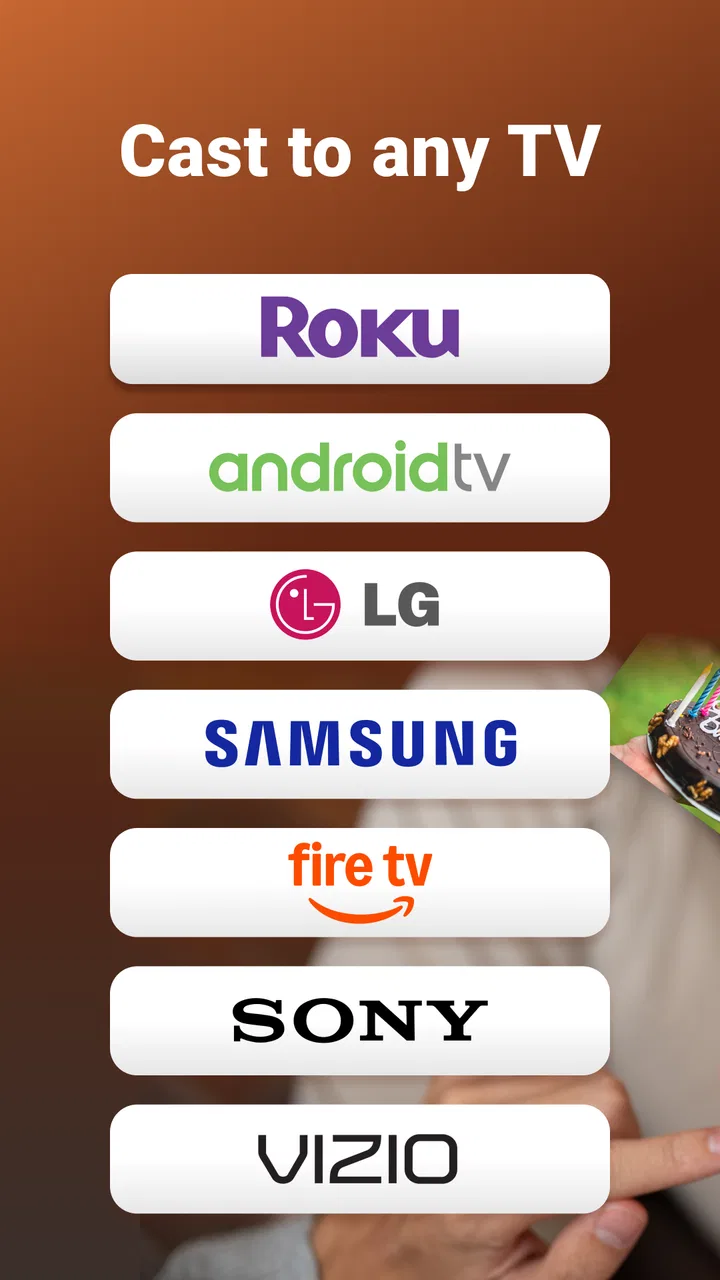
The feature that matters most here is the ability to cast photos and videos from the phone to a TV. That is more useful than it first appears because personal media is often scattered across the device people already carry. A family photo, a short travel clip, or a video recorded at an event does not need to be transferred to a computer first. The phone becomes the place where I choose the content, while the television becomes the place where everyone watches it.
The practical effect is less about technical novelty and more about reducing interruptions. Instead of passing a phone around a room, I can use the larger screen for the shared moment. The phone remains available as the control point, but the actual viewing experience moves to the television. That distinction matters when several people are looking at the same material, especially when small text and phone-sized video would otherwise make everyone lean in.
The remote function adds a second layer of usefulness. Once content is on the TV, I can keep the phone nearby rather than looking for a physical controller. This is particularly handy when the remote is in another room, has been misplaced, or is inconvenient to use while the phone is already in my hand. The app’s value therefore comes from the connection between selecting media and controlling the screen, not from either role in isolation.
I would not treat the app as a replacement for every casting standard or every TV control system. Its name references Roku and broader device control, but the experience still depends on the television and network setup being compatible. A smooth result requires the phone and TV to be able to communicate. If that relationship is not in place, the app cannot compensate through software alone.
What the workflow feels like
The most sensible way to use the app is to prepare the viewing session before handing the phone around. I would first make sure the television is on the expected network and ready to receive a connection. Then I would open the app, look for the intended TV, and select the photo or video I want to display. This order avoids the common frustration of choosing media first and only discovering afterward that the screen is not available.
For a casual session, the workflow is straightforward: find the device, choose personal content, cast it, and use the phone as the controller. The important habit is to think of the phone as a remote surface rather than as the screen itself. Once the content is visible on the TV, I would keep the handset close for navigation and use it to move between items instead of repeatedly walking to the television.
There is a useful distinction between a single photo and a longer video. A photo-sharing moment benefits from quick selection and immediate visibility. A video session benefits more from stable connectivity and a phone that is not being heavily interrupted by other tasks. I would avoid treating the phone as disposable during casting; it remains part of the control chain, so battery level and network stability can affect how relaxed the experience feels.
One non-obvious tip is to organize the content before starting. If I am showing holiday pictures, I would place the relevant images together or decide on a short sequence in advance. Searching through a crowded gallery while people wait makes the app feel slower than it is. The app removes the transfer step, but it does not remove the need to curate what I want others to see.
Another useful habit is to keep the first connection simple. I would test the TV with one ordinary photo before beginning a longer presentation. That quick check tells me whether the selected screen is the right one and whether the connection is behaving normally. It is a small step, but it prevents a room full of people from waiting while I troubleshoot a larger set of media.
A family viewing example
Imagine returning from a family trip with pictures and short clips stored on a phone. The usual alternatives are to pass the phone from person to person, upload everything elsewhere, or use a cable and hope the television accepts the connection. With this app, the more natural approach is to select the TV, cast the chosen material, and let the group watch together. The phone stays with the person guiding the session, while the television handles the shared display.
This scenario shows where the app earns its place. It is not necessarily about watching for hours; it is about making spontaneous sharing less awkward. A relative can ask to see a particular moment, I can find it on the phone, and the larger screen can become the common reference point. The remote feature is useful here because I can manage the session without returning to the TV after every item.
The same approach works for a short demonstration. If I have recorded a repair, a recipe step, or a clip that is difficult to explain verbally, displaying it on the TV gives the group a clearer view. The benefit is not professional presentation quality. It is the reduction of friction between content that already exists on the phone and a screen that everyone can see.
There is a trade-off in this scenario: the person holding the phone becomes the informal operator. That can be convenient, but it can also make one person responsible for finding every item and keeping the session moving. For a large, formal presentation, I would prefer a more structured setup. For a relaxed household gathering, the phone-led workflow feels more natural.
Where the app helps, and where it asks for patience
The main advantage is consolidation. I can use one tools app for two closely related tasks: sending personal media to a TV and controlling the viewing environment from the phone. That is more convenient than switching between a casting method and a separate remote application. It also makes sense for people who do not want to keep several device-specific utilities installed just to handle occasional living-room tasks.
The free entry point lowers the risk of trying it. I can test whether it fits my television and my habits without paying before I know whether the connection is useful. At the same time, the app includes in-app purchases ranging from $4.99 to $19.99 per item. I would therefore check what is available in the version I am using before assuming every part of the experience is included without additional cost.
The rating gives a reasonable signal rather than a guarantee: it has a 3.8 average from around 721 ratings, alongside around 142 written reviews. I read that as evidence of a generally workable idea with room for uneven experiences. Casting tools are especially sensitive to differences between phones, televisions, networks, and household setups, so one person’s smooth connection may not be another person’s result.
Network dependence is the biggest practical weakness. If the phone and television cannot see each other, the remote and casting workflow loses its advantage. A user may interpret that as an app failure when the real issue is device compatibility or local connectivity. My advice is to test the connection at home before relying on it for an event. It is not the kind of app I would install moments before a presentation and assume everything will work automatically.
There is also a control trade-off. A physical remote is usually predictable because it is dedicated to the television. A phone is more flexible, but notifications, calls, battery concerns, and accidental app switching can interrupt the experience. If I am watching something that requires constant navigation, the traditional remote may feel better. If I am already browsing photos or videos on the phone, the app has the stronger argument.
Compared with a TV manufacturer’s own remote application, this app’s appeal is its broader positioning as a universal remote and casting tool. A first-party app may offer a closer match to a particular television and can be the safer choice when brand-specific controls matter most. On the other hand, a universal approach is attractive in a mixed-device home where I do not want to remember which remote application belongs to which screen.
Compared with built-in phone casting, the decision is more personal. Built-in tools can be faster when they are already integrated into the phone and TV. This app becomes more interesting when I want casting and remote control in one place, or when the standard route feels fragmented. I would choose the simpler built-in option if it already handles my normal use perfectly. I would choose this app when the combined workflow is more valuable than having the fewest possible steps.
Small habits that improve the experience
I would keep the phone unlocked and reasonably charged during an important session. That is not a special requirement of the app so much as a sensible response to using a phone as the control surface. If the handset goes to sleep, receives a distracting alert, or runs low on power, the convenience of a universal remote can quickly disappear.
I would also separate private browsing from public casting. Before selecting anything in front of other people, I would review the gallery location and choose the intended material deliberately. Casting makes the selected item visible on the large screen, so a little preparation protects the viewing session from awkward surprises. This is one of the most important practical differences between showing personal media and launching a normal streaming application.
For repeated use, I would establish a routine: connect to the TV first, test one item, then continue with the prepared group of photos or videos. That sequence makes troubleshooting easier because it isolates the connection step from the content step. If the first item appears correctly, I know the basic path is working before I begin a longer session.
I would skip the app if my main goal is advanced TV administration, highly specialized playback control, or a guaranteed brand-specific experience. It is better suited to everyday casting and convenient remote access than to replacing a complete home-theater control system. Likewise, people who rarely view phone-stored media on a television may gain little from adding another tool to their routine.
Who gets the most from it
The best match is someone who keeps meaningful photos and videos on an Android phone and wants a simple way to share them on a larger screen. Families, couples, travelers, and anyone who regularly shows short clips to other people can understand the benefit quickly. The app is also appealing to users who often misplace a physical remote or prefer having a familiar touchscreen nearby.
It is less compelling for a person who only watches subscription services through the television’s existing interface. In that case, a physical remote may be quicker, and a manufacturer’s own application may offer more precise controls. I would also be cautious about choosing it as the only solution for a formal work presentation, where a wired connection or a dedicated presentation setup may be more dependable.
The broad compatibility starting at Android 7.0 is helpful for households with older phones, although the actual experience still depends on the TV and network. The Everyone rating makes it suitable for general household use, but that does not mean every family member will find phone-based control equally comfortable. Someone who dislikes touchscreen remotes may still prefer physical buttons for routine navigation.
After using it as a casting-and-control tool, my view is positive but specific. I like it most when the task begins with something already stored on the phone and ends with a group watching it on a TV. That is where the app turns a potentially clumsy exchange into a manageable routine. Its universal remote angle adds convenience, but it does not erase compatibility checks or the occasional need for a traditional alternative.
With over 100 thousand installs, the app has clearly found an audience, and FlyMobile has continued it through the current release. I would try the free version first, test it with the television I actually plan to use, and pay attention to any in-app purchase prompts before committing to a longer-term setup. My recommendation is straightforward: choose it for spontaneous phone-to-TV sharing and convenient control, but keep a backup method available when reliability matters more than flexibility.
FAQs for TV Cast - Roku Remote & All
01What is TV Cast - Roku Remote & All, and what can it do?
TV Cast - Roku Remote & All is a mobile companion app designed to help you control compatible Roku devices and stream content from your phone to a television. It commonly combines remote-control features with casting or screen-sharing tools, allowing users to navigate menus, adjust playback, enter text, and access supported media more conveniently than with a standard remote.
02Does TV Cast - Roku Remote & All work with every Roku television or streaming player?
Compatibility depends on the Roku television or streaming player, the app version, and the connection between your devices. In most cases, the phone and Roku device must be connected to the same Wi-Fi network before pairing. Some casting functions may also depend on the media source, operating-system permissions, or whether the Roku model supports the requested feature.
03How do I connect the app to my Roku device?
After installing the application, connect your smartphone and Roku device to the same wireless network, then open the app and allow it to search for nearby Roku products. Select the correct device from the list and follow any pairing instructions shown on the television. If the Roku does not appear, check Wi-Fi settings, restart both devices, and disable network isolation on the router if necessary.
04Can I cast videos, photos, or music from my phone to Roku?
The app may let you cast or share selected videos, photos, and music, but supported formats and services can vary. Content from certain streaming platforms may be restricted by copyright protection or by the platform’s own casting system. Before downloading, users should check whether the media they want to play is supported and remember that casting performance depends on Wi-Fi quality.
05Is TV Cast - Roku Remote & All free to use, and are there privacy concerns?
The application may be available to download without an upfront charge, while some remote, casting, or convenience features can require advertising, subscriptions, or in-app purchases. Review the current store listing for exact pricing before installing. Because the app may request local-network, device, and media permissions, users should read its privacy policy and grant only access that is necessary.
Pros
- Works with most Roku devices on the same Wi‑Fi network.
- Simple remote layout with responsive navigation controls.
- Useful keyboard input speeds up text searches on Roku.
- Supports casting photos and videos from a mobile device.
- Convenient alternative when the physical Roku remote is missing.
Cons
- Requires a stable Wi‑Fi connection to detect and control Roku devices.
- Some features may be locked behind in-app purchases or subscriptions.
- Contains advertising that can interrupt the free remote experience.
- Casting support may vary by media format and Roku model.
- Not an official Roku app
- so compatibility may change after updates.

TV Cast - Roku Remote & All
Gallery